Contents
AI assistant and MCP
What the assistant can do
Three settings decide how far it goes, and all three are off until you turn them on.
By Lucas Russo, developer of SSHive · Updated
Three levels
| Setting (Settings > MCP) | Default | The assistant can |
|---|---|---|
| Enable MCP server | Off | Work on the SSH sessions you have opened: commands, files |
| Let the assistant open sessions (sensitive) | Off | On top of that, list your servers, connect to them and close the sessions it opened |
Taking servers out of its reach
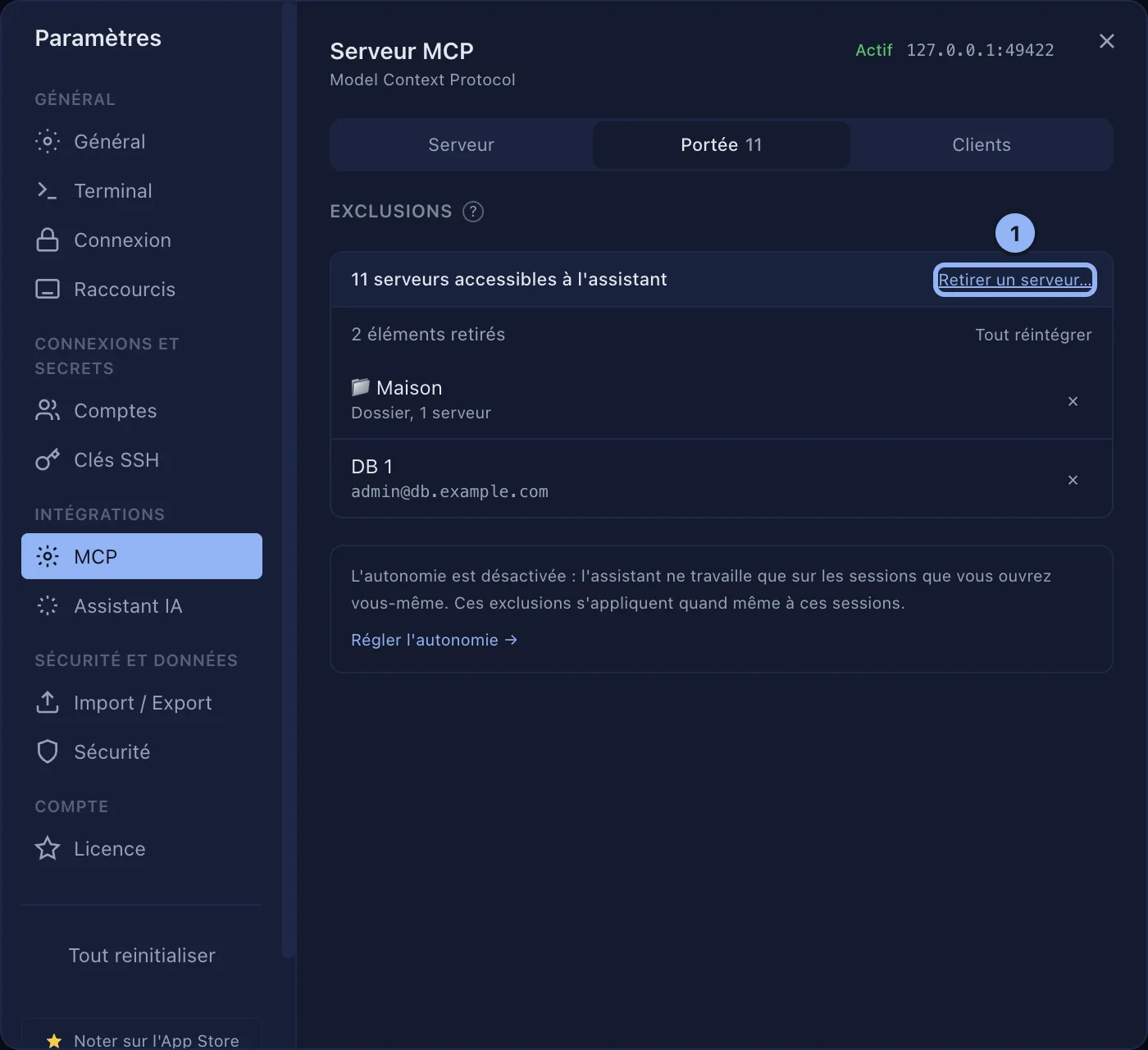
Scope tab: by default, the assistant can reach every one of your servers. Remove a server…: search for a server or a folder, and click to take it out. A folder taken out also covers the servers you file into it later. Restore all undoes it. Taking a server out immediately closes the sessions the assistant had opened on it.
What it does
- Commands: each command runs on its own, with no terminal; its output goes back to the assistant (8 MB at most).
- Files: list, read and write (1 MB per call), change part of a file, create folders, rename, change permissions, delete, and send and receive files of any size between the Mac and the server (in the background for the large ones).
- A notification says what it is doing.
What it cannot do
- Read your passwords, keys or passphrases.
- Accept the fingerprint of an unknown server, or allow an SSH agent: those questions come back to you. Connect once yourself.
- Read or write on the Mac in
~/.ssh,~/.gnupg,~/.awsor the data of SSHive. - Anything at all while SSHive is locked.
- Open an RDP or VNC session.
A two-factor code or a Touch ID prompt asked for one of its connections says that the request comes from it.
Applies to SSHive 2.0.6 on Mac