Contents
Authentication and keys
SSH agents (Strongbox, 1Password, Secretive)
An SSH agent keeps your keys and signs in SSHive's place: the private key never leaves the application it lives in. SSHive can use the macOS agent, with keys added by ssh-add, and those of Strongbox, 1Password, Secretive, Bitwarden, GnuPG for a YubiKey, and yubikey-agent.
By Lucas Russo, developer of SSHive · Updated
First, turn the agent on in your vault
| Application | Where to turn it on |
|---|---|
| Strongbox | Strongbox settings, SSH agent |
| 1Password | 1Password settings, Developer section |
| Secretive | On from the moment it is installed |
| Bitwarden | Bitwarden settings, SSH agent |
| GnuPG, for a YubiKey | Add enable-ssh-support to ~/.gnupg/gpg-agent.conf, then restart gpg-agent |
| yubikey-agent | Started by Homebrew, brew services start yubikey-agent |
Choosing the agent for every server
- Open Settings > Connection, the SSH authentication group, then the SSH Agent row.
- Choose a mode:
- The first time, macOS asks whether to let SSHive use that agent: click Allow.
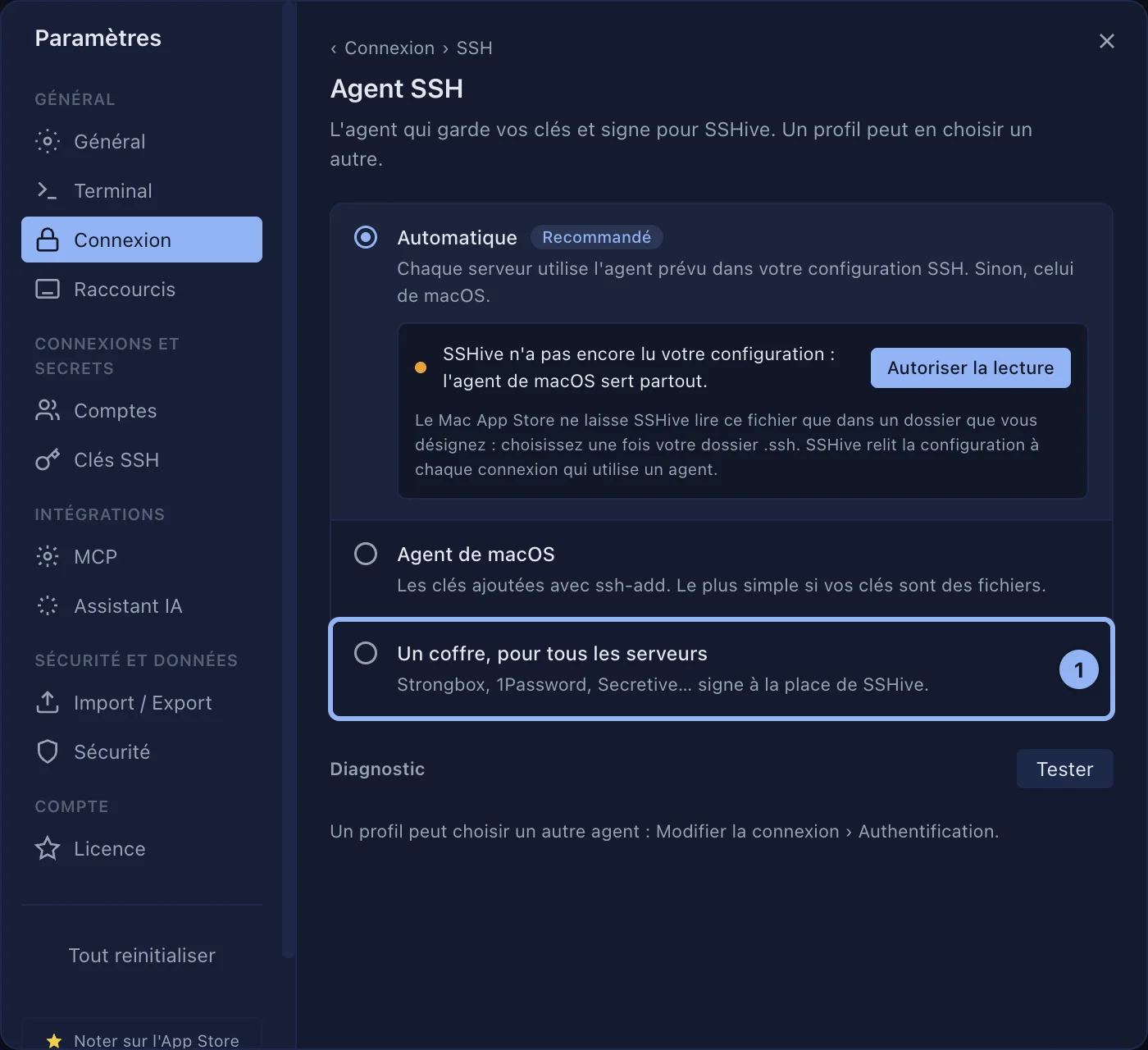
Automatic mode: letting SSHive read ~/.ssh/config
If your ~/.ssh/config holds, for example:
Host *
  IdentityAgent ~/.strongbox/agent.sock
SSHive follows that line as ssh does, server by server. For that it has to be able to read the file, so on the Mac App Store you point at your .ssh folder once.
- On the SSH Agent page, in Automatic mode, click Allow reading.
- In the window that opens, choose your
.sshfolder. It is in your home folder; show hidden folders with ⌘⇧.. - The page then states that it reads
~/.ssh/config, and shows the agent it retained for eachHostblock.
Choosing an agent for one server only
In the profile, with the SSH Agent method, the SSH Agent list offers the default from the settings, the macOS agent only, ignoring ~/.ssh/config, or one precise agent. It also appears when Agent Forwarding is ticked.
Checking that the agent answers
The Diagnostics section, Test button: SSHive asks the agent for the list of its public keys, nothing else, and shows how many it has, with each one.
Withdrawing an agreement
The Allowed on this Mac section, Remove button. Open sessions stop sending it requests at once; the next connection asks the question again.
When a connection through an agent fails
The tab shows a card that says what is missing and offers to repair it on the spot: read ~/.ssh/config, allow the agent, or choose another agent for this profile. After the repair the connection starts again in the same tab.
Applies to SSHive 2.0.6 on Mac