Contents
Files
File manager and transfers
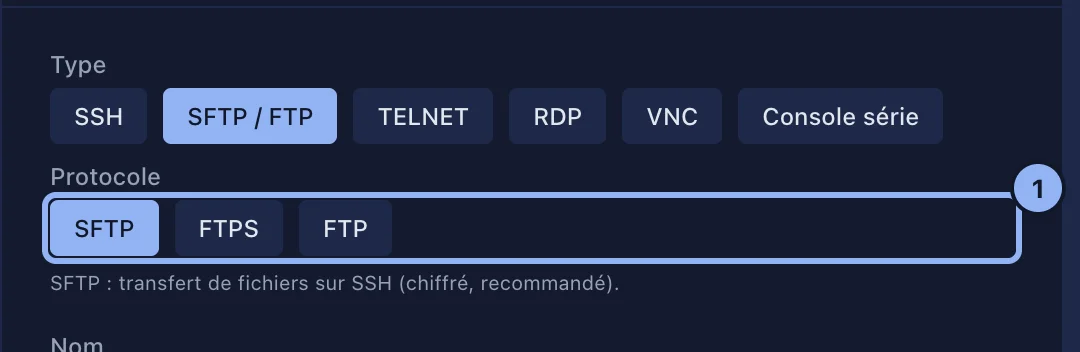
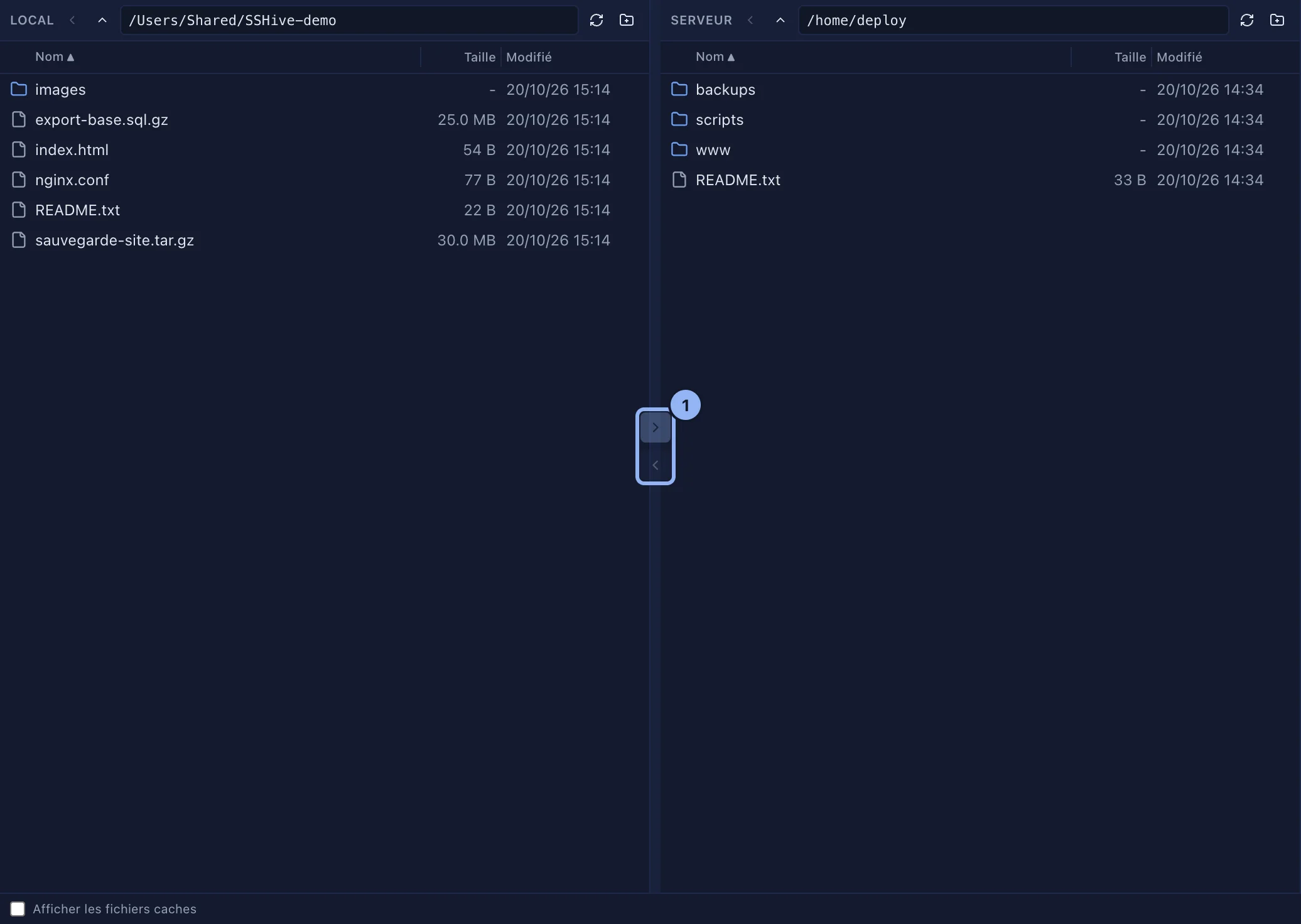
For a file server with no terminal, or to work in two panes as in an FTP client: a connection of type SFTP / FTP, whose tab shows the Mac on the left and the server on the right.
By Lucas Russo, developer of SSHive · Updated
- New Connection, Type: SFTP / FTP.
- Protocol: SFTP, over SSH and encrypted, FTPS, or FTP (see FTP and FTPS).
- Host, user and authentication as for SSH, then Create, and a double-click to open it.
- The first time, the Local pane asks for a starting folder: click Choose a folder and pick one, your home folder for instance.
Transferring
- Select files, with a click, ⌘-click or ⇧-click, then send them to the server or bring them down to the Mac with the two arrow buttons.
- Or drag from one pane to the other, or from the Finder onto the Server pane.
- A double-click on a file sends it to the other side.
- Each pane has its own path field, where
/var/wwwand Return work, plus Back, Parent folder, Refresh and New folder.
The transfer queue
At the bottom, the transfer queue: direction, progress, speed and time left. A row turns Complete or Failed, and hovering a failed one reads the reason. The cross cancels; Clear list removes the finished rows.

Resuming an interrupted transfer
On a Failed row: Resume carries on where the transfer stopped, Restart begins again from the start, which is what downloads and every FTP transfer do. A whole folder cannot be resumed; restart it.
Applies to SSHive 2.0.6 on Mac