Contents
Remote desktop
Windows remote desktop (RDP)
Pro
Open the desktop of a Windows PC or server in a tab of SSHive.
By Lucas Russo, developer of SSHive · Updated
Before you start
Remote Desktop has to be turned on on the Windows machine (Settings > System > Remote Desktop on Windows 10 and 11 Professional), and your account has to be allowed to connect to it.
Creating the connection
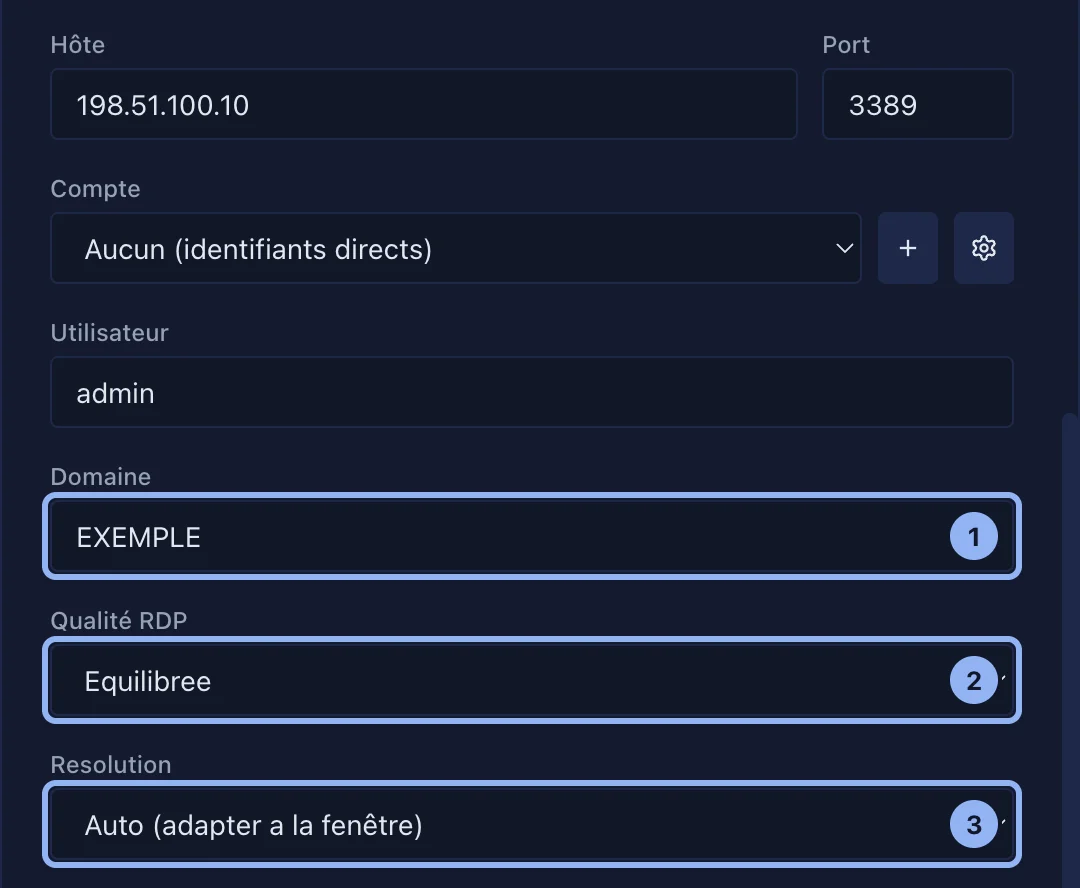
- New Connection, Type: RDP.
- Host: name or address of the PC. Port: 3389.
- Username, Domain if the PC is in a domain (
EXAMPLE), Password. Or pick a shared account. - RDP Quality: Balanced is almost always the right choice.
- Resolution: Auto (fit window), or a fixed size.
- Test Connection, then Create, then double-click.
The toolbar
It sits folded at the top of the desktop: hover the small handle to show it, and the pin keeps it open.
| Button | What it does |
|---|---|
| Ctrl+Alt+Del | The Windows security screen |
| The Windows key, Win+R, Win+L, Win+Tab, Win+D, Win+E | Start menu, Run, lock, Task View, desktop, File Explorer |
| Screen | Task Manager |
| Full screen | Also ⌃⌘F |
x Mb/s · N fps | Throughput and frames per second (see below) |
| Auto, High, Balanced, Low | Image quality; choosing one turns Auto off |
The Mac keyboard
| On the Mac | In Windows |
|---|---|
| ⌘ | Ctrl: ⌘C, ⌘V, ⌘Z work as they do under Windows |
| ⌘ alone (pressed, then released) | The Windows key |
| ⌘⌥ | The Windows key, in a combination |
Copy and paste
- From the Mac to Windows: copy on the Mac, then ⌘V in the Windows desktop.
- From Windows to the Mac: copy in Windows; the text is in the Mac clipboard at once, with nothing else to do.
- Text only, no files and no images.
Sound
Windows sound is played on the Mac. The Mac microphone is not sent.
Image size and quality
- With Auto, the Windows resolution is chosen when the tab opens, from your screen. Resizing the window afterwards scales the image (Windows keeps its resolution).
- Auto (on by default) lowers the quality when the display falls behind on the Mac, and raises it again afterwards; a message says so.
- The
x Mb/s · N fpspill is green, yellow or red depending on how far the display is behind, and grey when nothing moves on screen. - A hidden RDP tab stops producing frames: the Mac is not working for nothing.
The identity of the PC (certificate)
At the first connection, SSHive accepts the PC certificate and remembers it (Windows creates one itself, which no authority can validate). If the certificate changes, the connection stops and a dialog compares the old one with the new one:
- same name, issued the same way: this is often the automatic renewal Windows does roughly every six months; Update and continue;
- another identity: Cancel connection, and check with the administrator. In RDP, the password is handed to the server: do not give it to a machine you do not recognise.
An old server that refuses modern protocols
A server that accepts neither NLA nor TLS (very old Windows, some appliances) shows This server refuses modern protocols. The button that connects anyway works, but the identity of the server cannot be verified; the choice is remembered for this server, as an option in its form.
Drops and end of session
- Network drop: SSHive reconnects on its own (5 attempts), then offers Reconnect.
- Session closed by Windows (sign-out, restart): SSHive says the RDP session has ended.
- Password refused: SSHive asks for it again (see Passwords).
Applies to SSHive 2.0.6 on Mac