Contents
Network
Open an SSH tunnel
A tunnel makes a connection travel through the SSH server. There are three kinds, and all three are set up in the server's own form.
By Lucas Russo, developer of SSHive · Updated
The three kinds
| Tunnel | Example | Free | Pro |
|---|---|---|---|
| Local (-L): a port of the Mac leads to a machine the server can reach | localhost:5433 on the Mac → the PostgreSQL database db.internal:5432 | 1 | 10 per server |
| Remote (-R): a port of the server leads to a machine the Mac can reach | port 8080 of the server → your application in development on the Mac | No | 5 per server |
| SOCKS5 proxy (-D): a proxy on the Mac that goes out through the server | a browser set to localhost:1080 | No | 1 per server |
Setting a tunnel up in the server
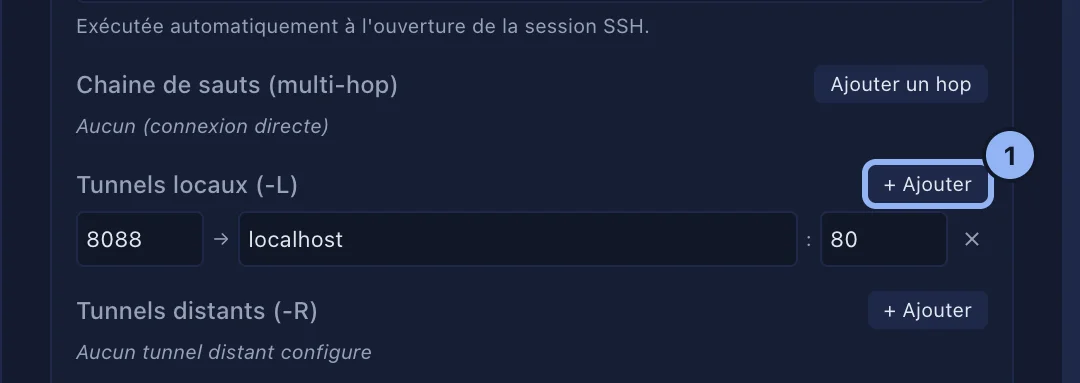
- Edit the server, Advanced options.
- Local Tunnels (-L), + Add: Local, the port on the Mac, then Remote host and Remote, the port, both seen from the server.
- For a remote tunnel, Remote Tunnels (-R): Remote, the port on the server, then Local host and Local.
- For a proxy, SOCKS5 Proxy (-D): a port between 1024 and 65535.
- Save. The tunnels open at every connection.
Following and adding tunnels during a session
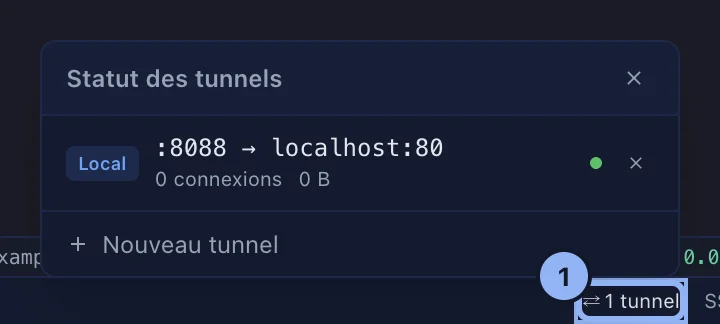
The status bar shows how many tunnels are actually working. Click it for Tunnel Status, with each one's kind, ports, number of connections and bytes transferred. The cross closes a tunnel. New tunnel adds one for this session only; it is not saved into the server.
If a tunnel does not open
The session opens anyway, and a Tunnel not started message says which one and why. Most often, the local port is already taken by another application. After an automatic reconnection, the tunnels are restored.
Applies to SSHive 2.0.6 on Mac