Contents
Terminal
Using the terminal
Everything above and around the shell: the buttons, the selection, the search, the panes, and what happens when the connection drops.
By Lucas Russo, developer of SSHive · Updated
The toolbar
At the top of every terminal, from the left: the kind of session, user@host:port, the state, then the buttons. Drag a button to change their order.
| Button | What it does |
|---|---|
| Search | Search inside the terminal, ⌘F |
| Copy | Copies the selected text |
| Selection mode | Take the mouse back from vim or tmux so you can select text |
| Quick Commands | The panel of saved commands |
| Broadcast to all SSH sessions Pro | Send one command to every server |
| Start logging Pro | Record the session into a file |
| SSH Diagnostics | Negotiated algorithms, fingerprint, banner, weak points |
| Monitoring | Processor, memory, disks, load and uptime of the server |
| Show/hide SFTP panel | The server's files beside the terminal |
| Switch SFTP left/top | Files on the left, or on top |
| Text size | From 8 to 32 |

Copy and paste
- Copy: select, then ⌘C. With Copy on select, in Settings > Terminal, selecting is enough.
- Paste: ⌘V, or the middle click.
- Right-click: Copy, Paste, Select All, clear the terminal, and the commands of the AI assistant.
- Under vim, tmux or htop, which take the mouse: hold ⌥ while dragging to select, or click the selection-mode button, which shows a Mouse taken badge, then click it again to give the mouse back.
- The Option key: by default it types the special characters (
| \ @ ~ { }). To make it a Meta key instead, for Emacs or shell shortcuts, turn on Use Option as Meta key in Settings > Terminal.
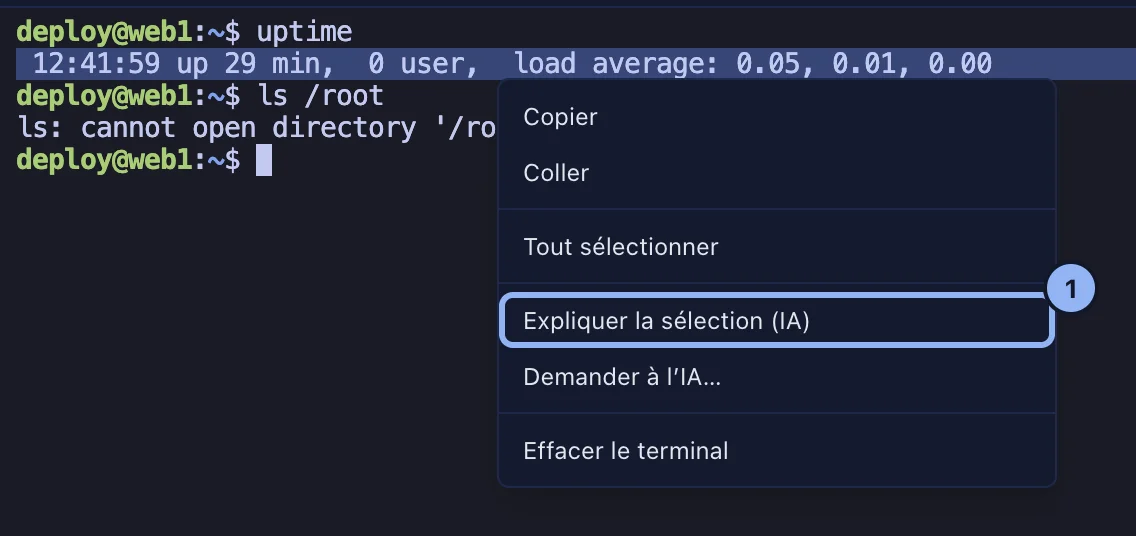
Search
⌘F opens the search bar, with Match case, Whole word and Regular expression. Return for the next result, ⇧Return for the previous one, Esc to close.
Splitting the terminal
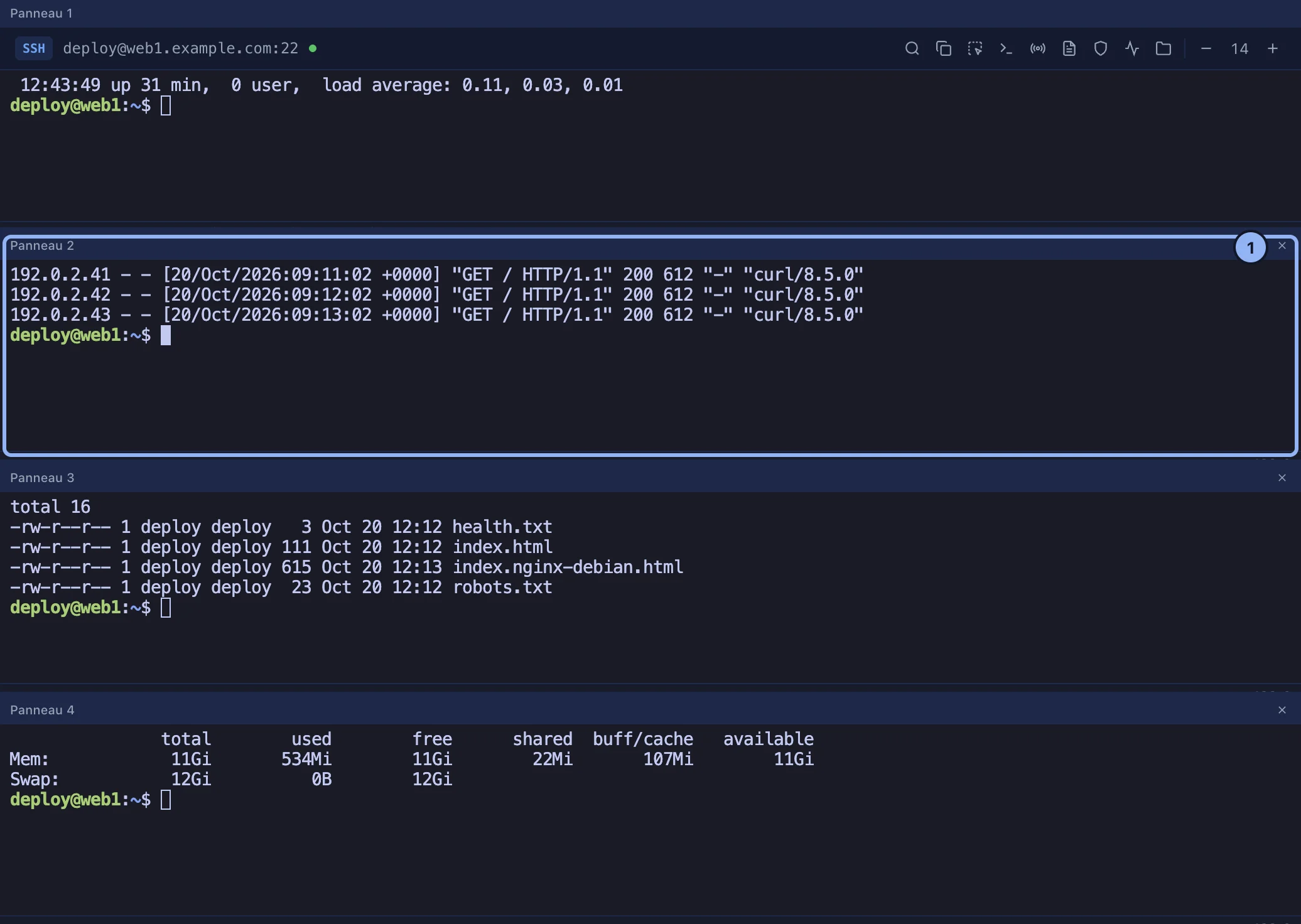
⌘D splits horizontally, ⌘⇧D vertically, up to 4 panes. In SSH each pane is a new shell on the same connection. The active pane is outlined, and the cross in its header closes it.
Suggestions
As you type, SSHive offers in grey a command already used in this session: → or End accepts it. Never at a password prompt.
Watching the server
Under an SSH terminal, a bar shows processor, memory, the / disk and the load, refreshed every 5 seconds while the tab is shown. Green, then yellow from 60%, orange from 80%, red from 90%. Hover the disk to see every partition. The Monitoring button opens the detail, with the uptime and the five hungriest processes. Linux and macOS servers.
Startup command
In the profile, Advanced options, Startup command: for example cd /var/www && tmux attach. It runs when the session opens, not after a reconnection.
Reconnection
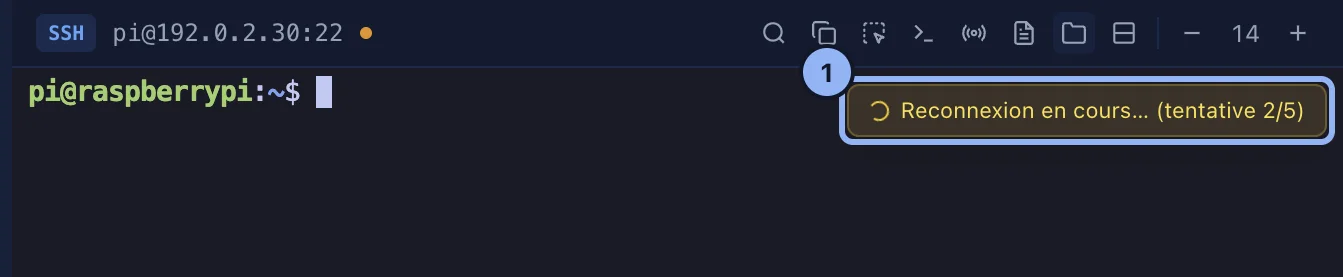
If the connection drops, from the network or from the Mac going to sleep, SSHive reconnects on its own, up to 5 times, in the same tab, behind a yellow badge. Once back, the terminal keeps its scrollback and says so: it is a new shell, and the working directory and the processes from before are gone (tmux or screen keep them). The tunnels are restored. After a failure, the toolbar's Reconnect button.
Appearance
Settings > Terminal: Font, Font size, 14 by default, Scrollback, 10,000 lines, the cursor style and its blinking, and the terminal theme: Tokyo Night, Dracula, Monokai, Solarized Dark, Solarized Light, Nord, Gruvbox and Catppuccin Mocha. ⌘+ and ⌘- change the text size.
The theme of the application itself, in Settings > General, Theme: Dark and High Contrast in the free version, Light and System with Pro.
Applies to SSHive 2.0.6 on Mac