Contents
Authentication and keys
Server passwords
SSHive saves a server's password encrypted by the macOS keychain. It never leaves the application and is never shown back to you.
By Lucas Russo, developer of SSHive · Updated
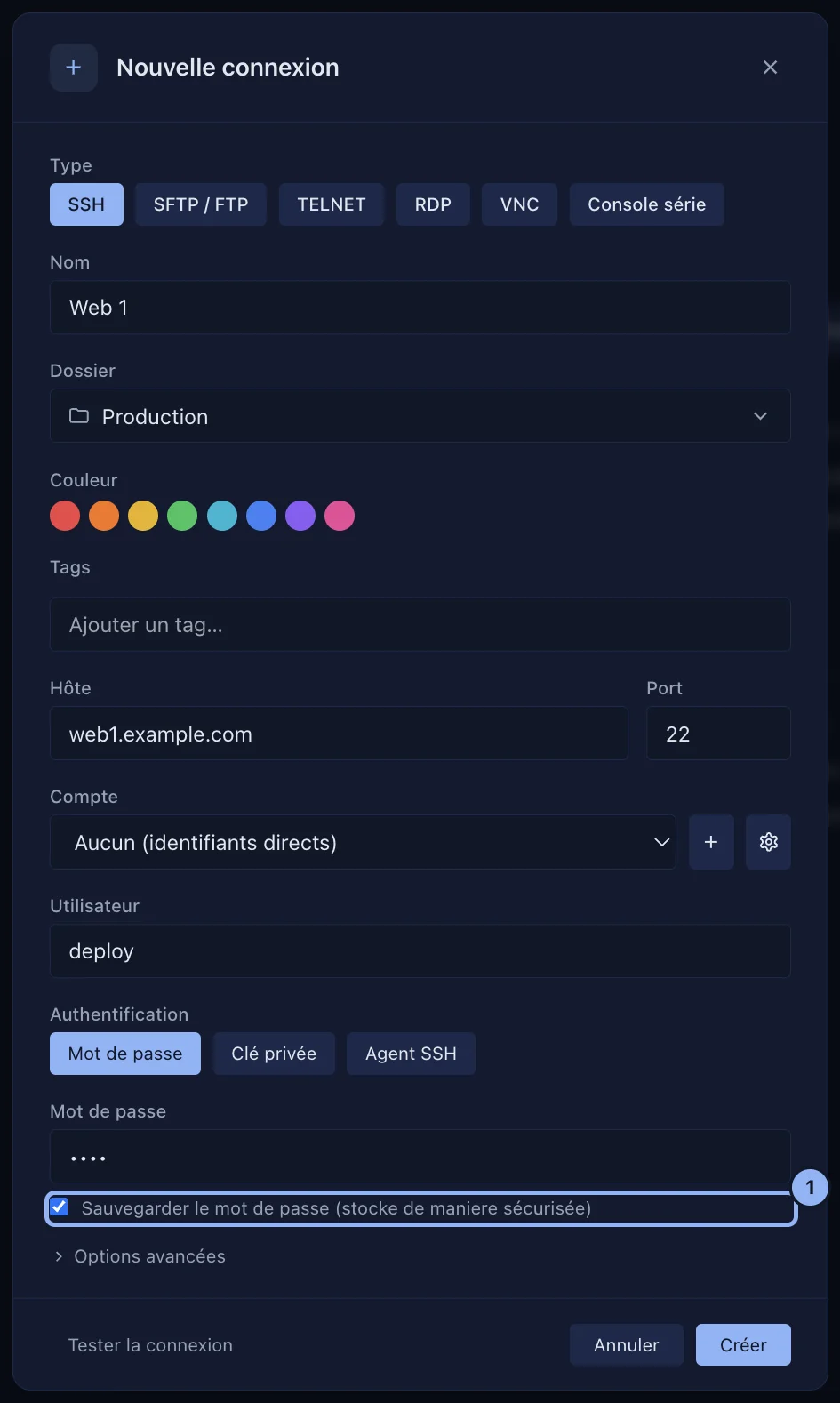
Saving a server's password
- Open the profile: New Connection, or right-click a server and Edit.
- In Authentication, choose Password, then type it.
- Leave Save password (stored securely) ticked. It is ticked by default.
- Click Save.
Connecting without a saved password
SSHive asks for the password at every connection. The one you type is used for that session only.
When the server refuses the password
The tab stays open and SSHive asks you to type it again, up to 3 times, as ssh does. That holds for SSH, RDP and FTP; VNC has its own button to type the password again (see VNC).
If the refused password was the one saved in the profile, Update the saved password is ticked: the new password replaces the old one, but only once the server has accepted it.
Applies to SSHive 2.0.6 on Mac