Contents
Connections
Create an SSH connection
One server, one entry in the sidebar. The form takes under a minute, and Test Connection tells you whether it works before you save anything.
By Lucas Russo, developer of SSHive · Updated
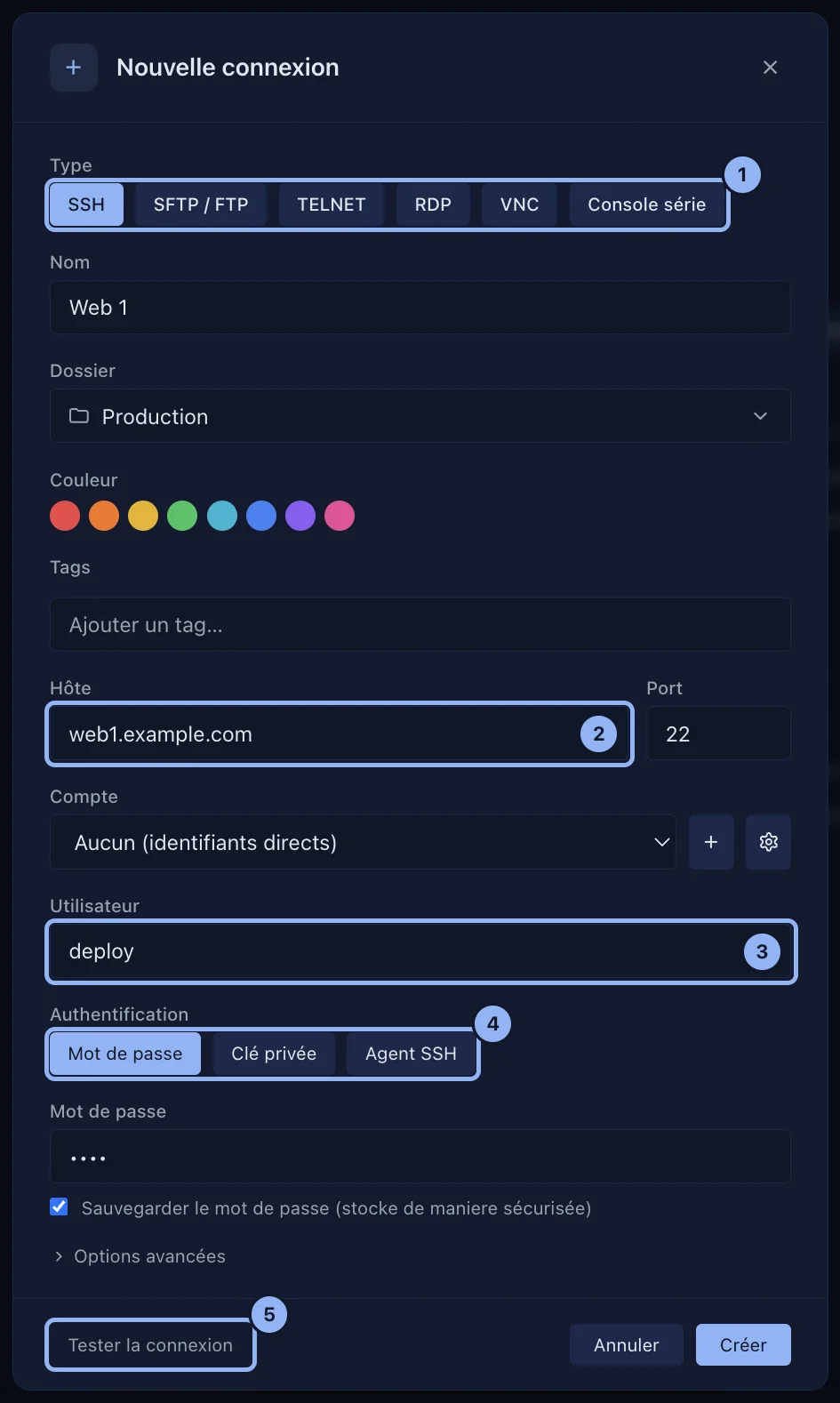
- Click New Connection, on the welcome screen or in the sidebar, or press ⌘N.
- Type: SSH, which is already selected.
- Name: what the sidebar will show, for example
Web production. - Host: the server's name or IP address, for example
web1.example.com. Port: 22, unless you were told otherwise. - Username: the account on the server, for example
deploy. - Authentication: Password, Private Key or SSH Agent (see authentication).
- Optional: Folder, Color and Tags, to find the server again later (see organise your servers).
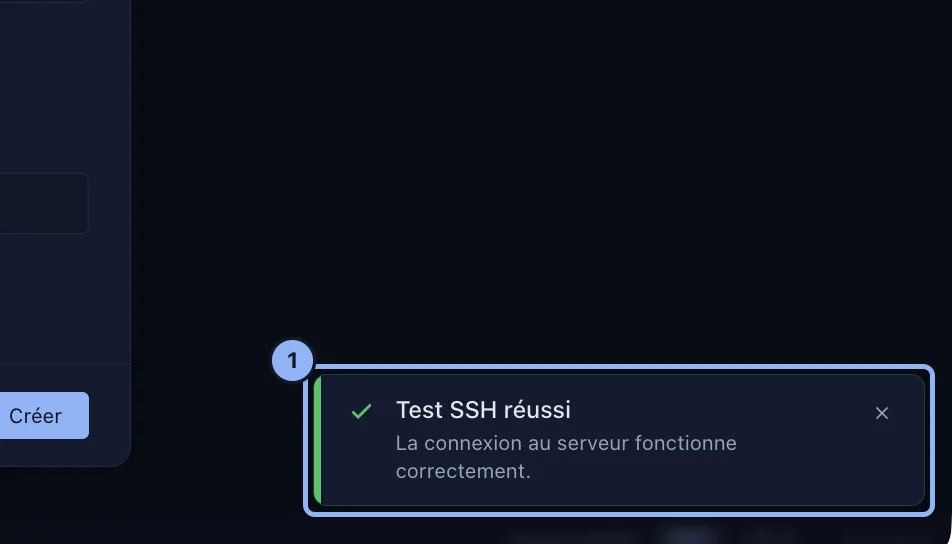
- Click Test Connection. SSH test succeeded means everything is in place.
- Click Create. The server appears in the sidebar; double-click it to connect.
On the first connection SSHive shows you the server's fingerprint: see host keys.
Advanced options
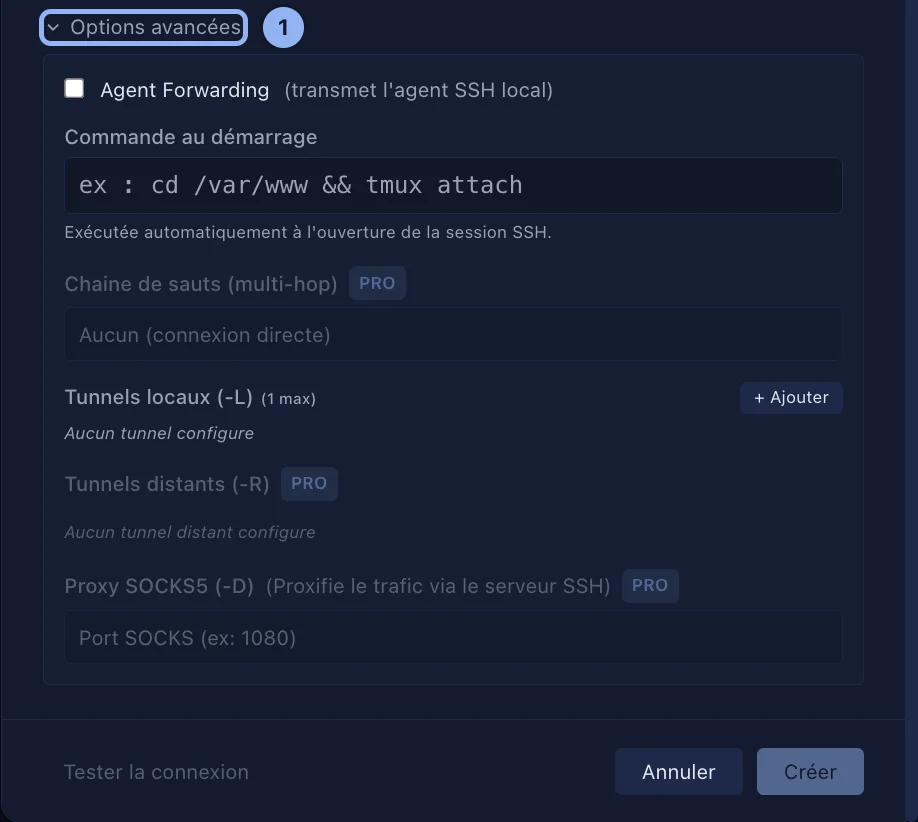
Under the form, Advanced options:
| Option | What it does |
|---|---|
| Agent Forwarding | The server may use your SSH agent to reach further (git, another server) |
| Startup command | Run when the session opens, for example cd /var/www && tmux attach |
| Jump Chain (multi-hop) Pro | Go through one or more intermediate servers: jump hosts |
| Local Tunnels (-L), Remote Tunnels (-R) Pro, SOCKS5 Proxy (-D) Pro | SSH tunnels |
Edit, duplicate, delete
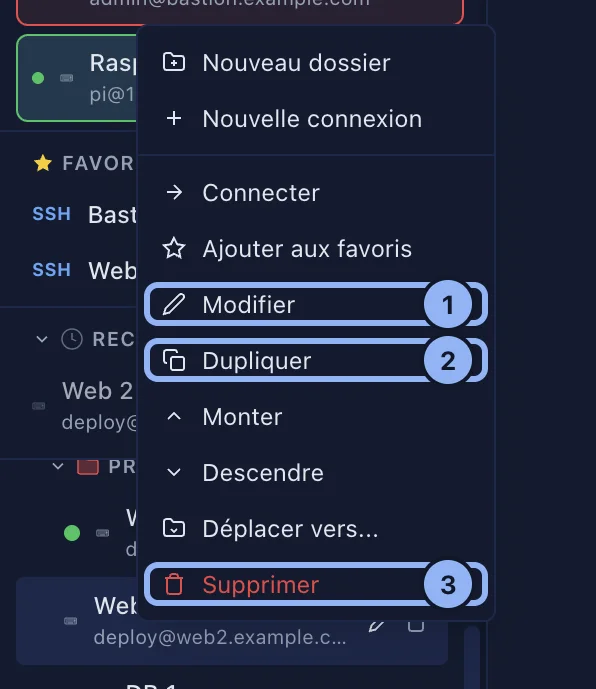
Right-click the server in the sidebar: Edit, Duplicate, Delete. Deleting asks for confirmation, and the server leaves the recent connections too.
Applies to SSHive 2.0.6 on Mac