Contents
Getting started
First launch
SSHive opens in the language of the Mac (English, French, German and Spanish). To change it: Settings > General, Language.
By Lucas Russo, developer of SSHive · Updated
The welcome screen
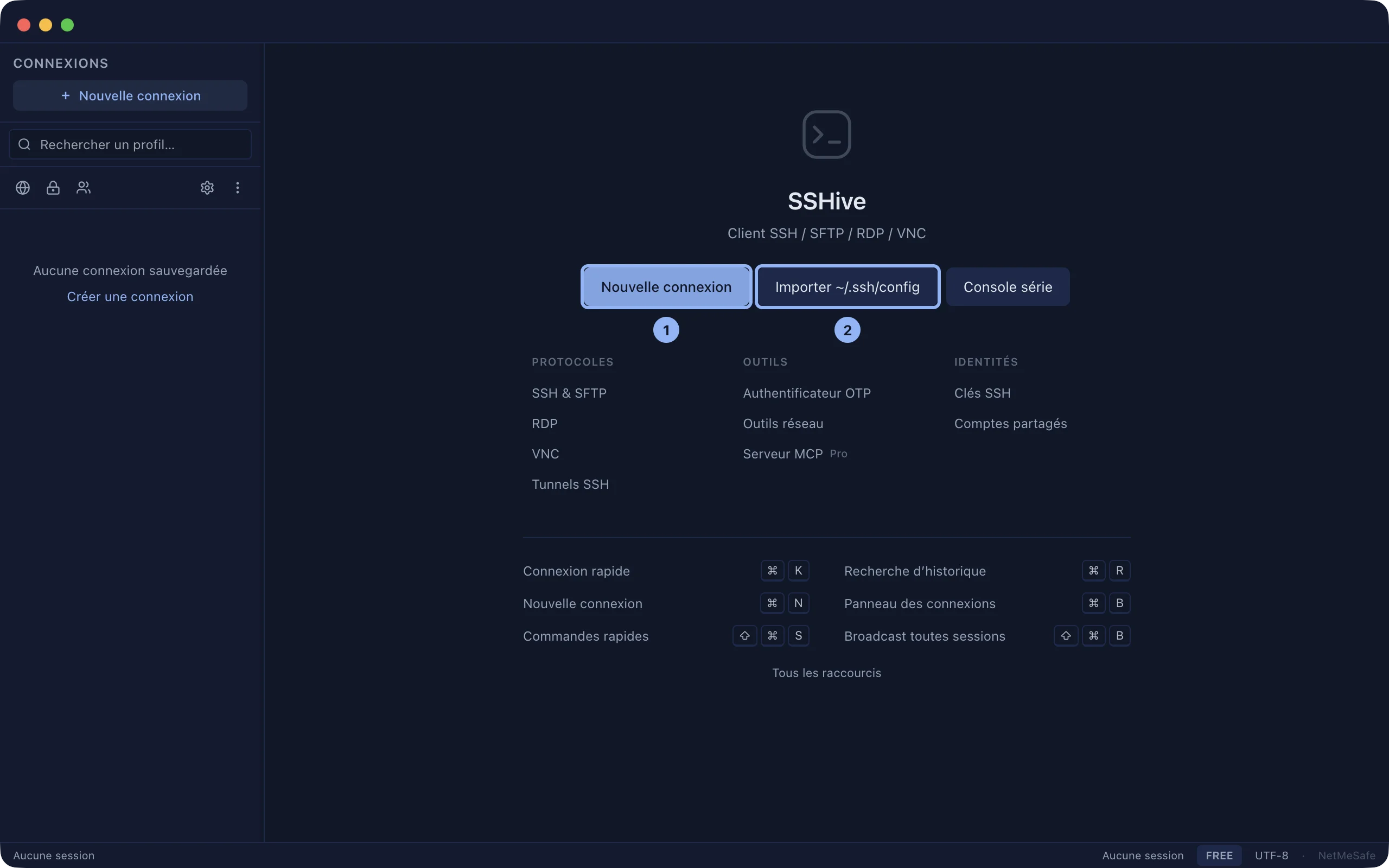
As long as no session is open, SSHive shows the welcome screen:
- New Connection: create your first server.
- Import ~/.ssh/config: take over the servers you already use with
ssh. - Serial console: a console cable to a router or a switch.
- Three columns of shortcuts: Protocols, Tools (OTP Authenticator, Network Tools, MCP server) and Identities (SSH Keys, Shared Accounts, SSH Agent).
- The main keyboard shortcuts, and All shortcuts.
The window
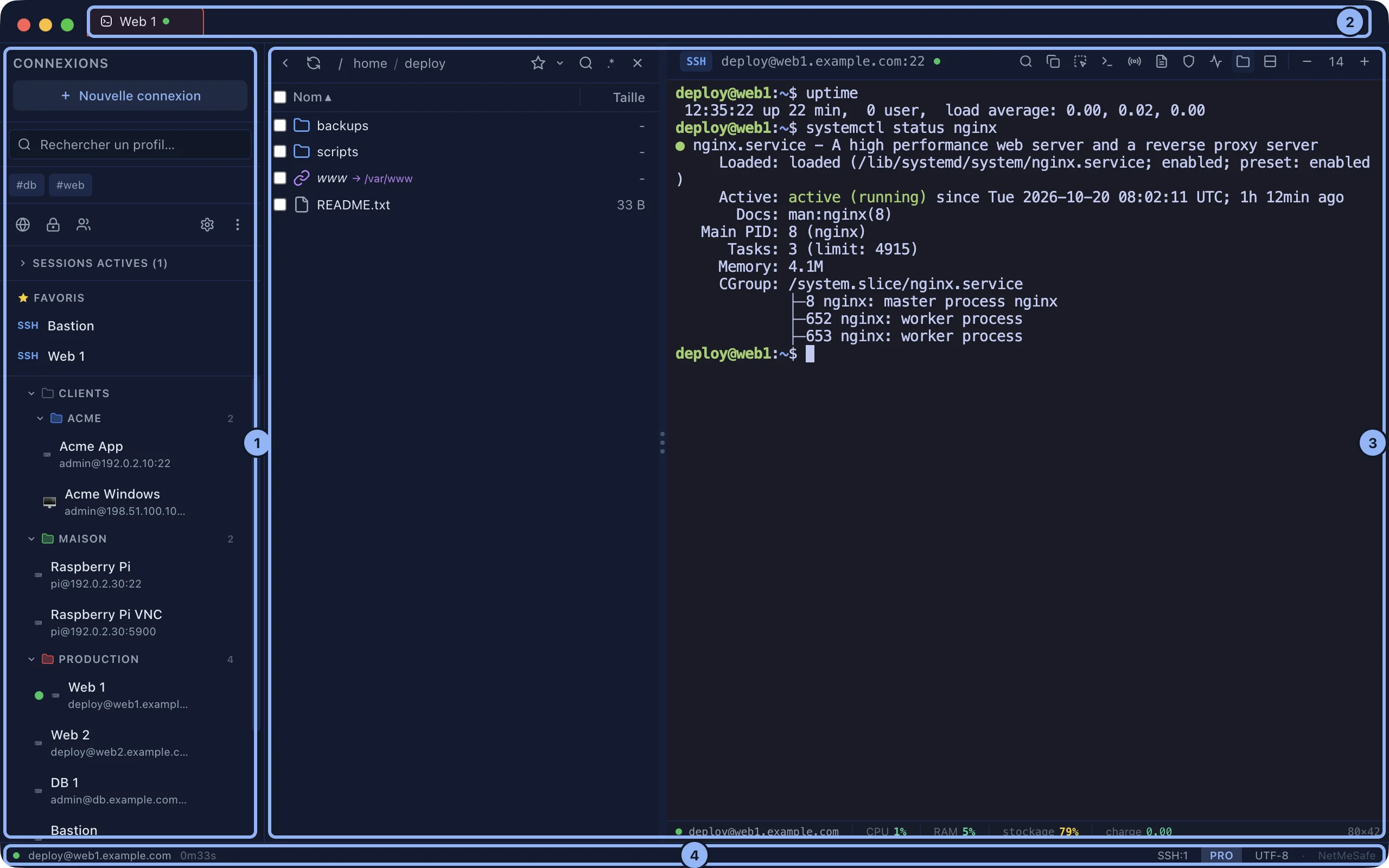
- The sidebar (⌘B hides it): your servers, the open sessions, the favourites and the recent connections. At the top, the search field and the Network Tools, OTP Authenticator, Shared Accounts and Settings buttons.
- The tab bar: one session per tab.
- The work area: a terminal, files, or a remote desktop.
- The status bar, at the bottom: how many sessions are open, the active tunnels, the jump hosts, the SSH agent in use, and FREE or PRO.
Next step: create an SSH connection.
Applies to SSHive 2.0.6 on Mac