Contents
Connections
Export and import your profiles
Pro
To move to another Mac, to keep a backup, or to hand a list of servers to a colleague. To keep several devices aligned all the time, iCloud is the better answer.
By Lucas Russo, developer of SSHive · Updated
Exporting
- Settings > Import / Export, Export profiles.
- Choose With passwords (encrypted) or Without passwords.
- With passwords: type a Passphrase, 8 characters at least, and confirm it. It will be asked for on import; without it the file cannot be read.
- Optional: Include OTP tokens, which makes the encryption compulsory, and the settings.
- Export to file… writes a
.sshivefile named after the day.
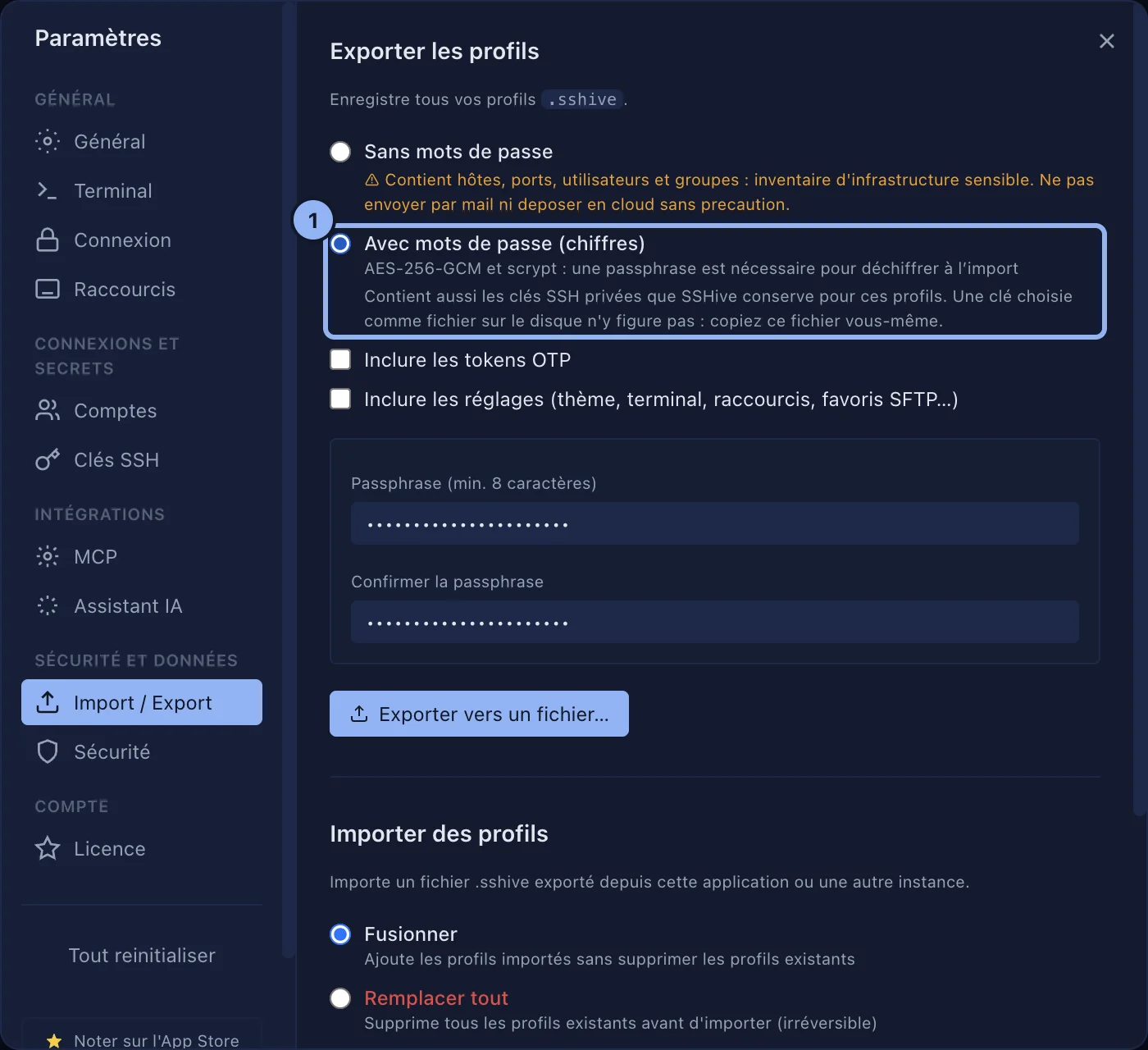
The file holds the servers and the shared accounts. Encrypted, it also holds passwords, passphrases and managed keys. A key you picked as a file on disk is not in it. Never exported: the AI assistant's token and permissions, the master password, Touch ID, the SSH agent choices, and the API key of the terminal assistant.
Importing
- Settings > Import / Export, Import profiles.
- Merge, which adds to the servers already there, or Replace all, which cannot be undone.
- Choose a .sshive file…. If it is encrypted, type the passphrase, then Decrypt.
From another program
The Import from another tool section reads a PuTTY session file (.reg), Royal TSX (.rtsx) or MobaXterm (.ini).

Applies to SSHive 2.0.6 on Mac