Contents
Authentication and keys
SSH keys
SSHive can generate and keep your SSH keys: a private key is encrypted by the keychain and never written into ~/.ssh. Those managed keys can be reused in every profile, and follow iCloud.
By Lucas Russo, developer of SSHive · Updated
Generating a key
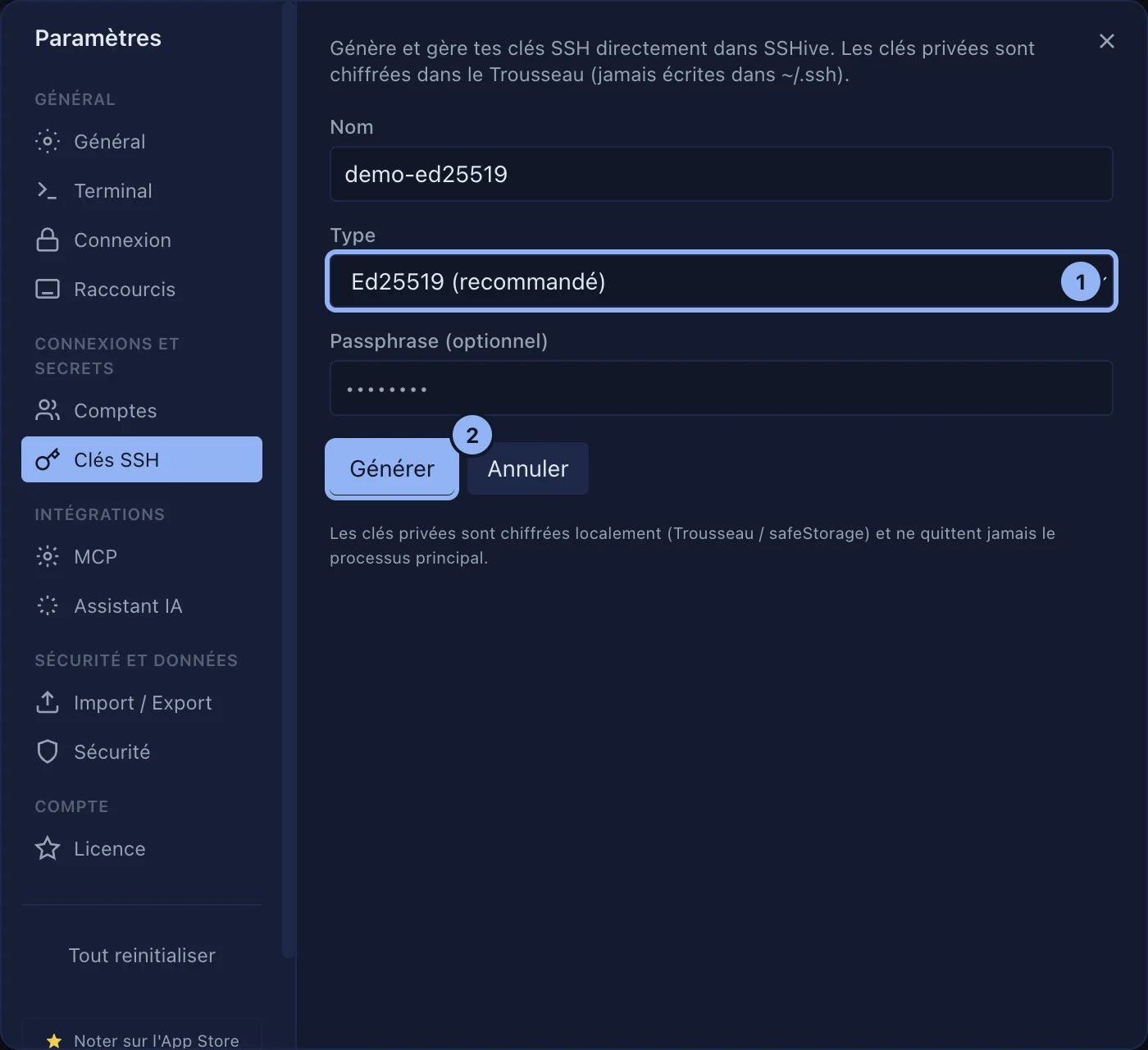
- Open Settings > SSH Keys.
- Click Generate a key.
- Give it a Name, for example
prod-server. - Choose the Type: Ed25519, RSA 4096, ECDSA.
- Optional: a Passphrase. SSHive keeps it encrypted, so you will not have to type it again.
- Click Generate: the new pair appears in your list of keys.
Installing the key on a server
The equivalent of ssh-copy-id, without leaving SSHive.
- First open an SSH session to that server, with a password.
- In Settings > SSH Keys, on the key's row, click Install on host.
- Pick the open session from the list. The key is added to the server's
~/.ssh/authorized_keys, without a duplicate. - Then edit the profile to use that key, as below.

Copy public key puts it on the clipboard, to paste it elsewhere: GitHub, a host's control panel.
Importing a key you already have
Click Import a key, paste the private key, then Import. Formats read: OpenSSH (BEGIN OPENSSH PRIVATE KEY), PEM (BEGIN RSA PRIVATE KEY, BEGIN EC PRIVATE KEY) and PuTTY PPK version 2.
Using a key in a profile
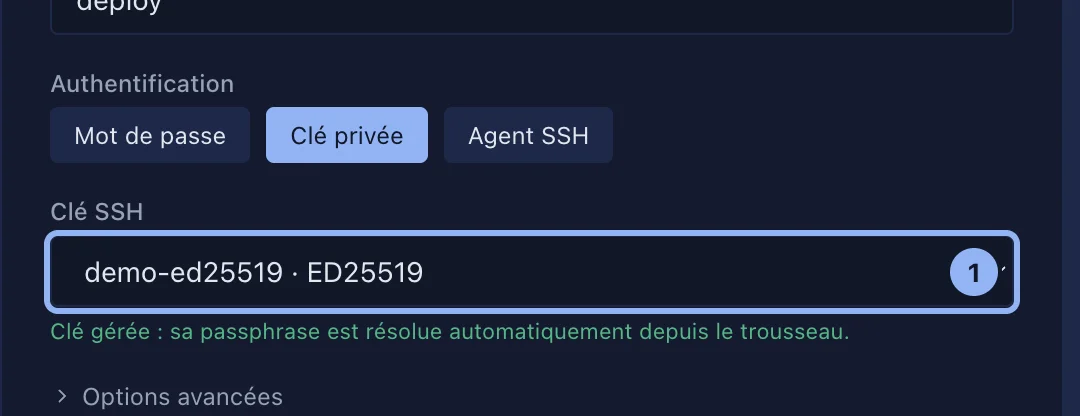
- In the profile, Authentication: choose Private Key.
- Under SSH Key, pick one of your managed keys. Its passphrase is found automatically.
- Or choose Local file…, then Browse. If the key is protected, tick Key protected by a passphrase and type it.
Deleting a key
The bin icon on its row. If profiles use it, SSHive says so and asks for confirmation: those connections will stop working.
Applies to SSHive 2.0.6 on Mac