Contents
Files
The SFTP panel
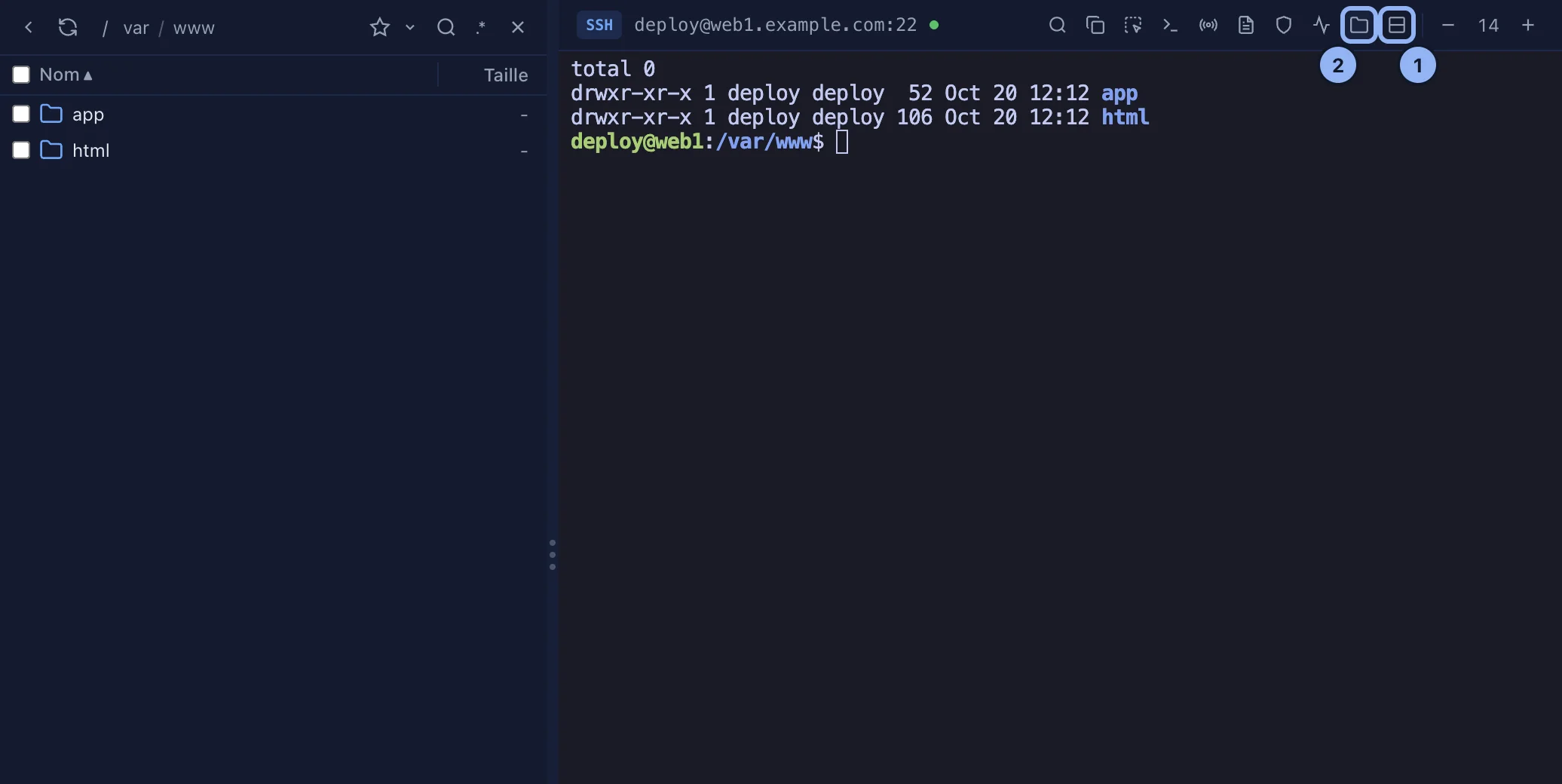
Every SSH tab has the server's files beside its terminal. The panel opens in your home folder on that server.
By Lucas Russo, developer of SSHive · Updated
Show, hide, arrange
In the terminal toolbar: Show/hide SFTP panel, the folder icon, and Switch SFTP left/top to put it on the left or above the terminal. Drag the separator to resize it; double-click it to go back to its original size.
Browsing
- Double-click a folder to open it; Parent folder to go up; the breadcrumb to go further up in one click.
- Refresh reads the folder again.
- The star adds the folder to this server's favourites; the chevron beside it lists them.
.*shows the hidden files.- Click a column header to sort, folders staying on top. Right-click the headers to choose the columns.
Uploading
Drag files or folders from the Finder onto the panel. A folder is uploaded with its contents, empty subfolders included. 3 uploads run at a time and the rest wait their turn.
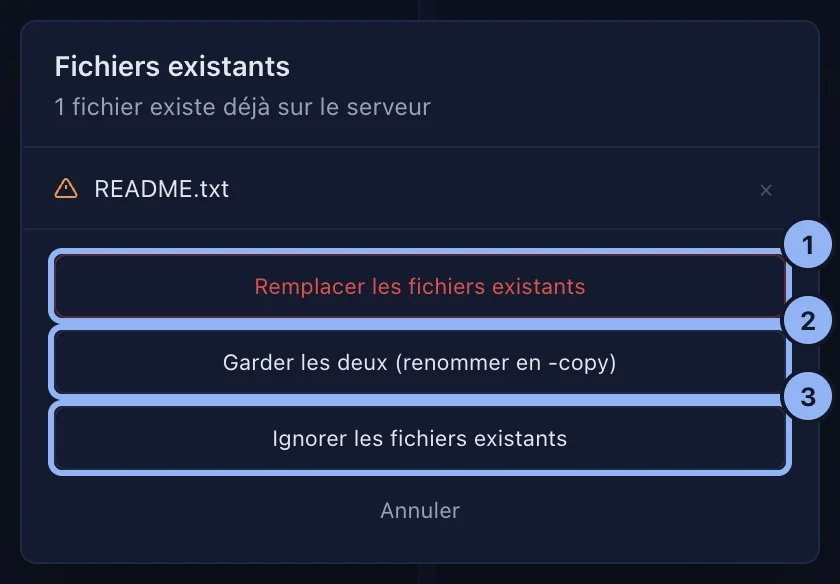
If some files are already there, one question covers the whole batch, Existing files: Replace existing files, Keep both (rename as -copy), Skip existing files, or cancel. The cross on a row takes that file out of the upload.
Downloading
- One file: right-click, Download, then choose where to save it.
- Several files, or a folder: tick them, then Download in the bar that appears, and choose the destination folder. A folder comes down with its contents, and a name already present on the Mac is renamed
-copy.
A file's menu
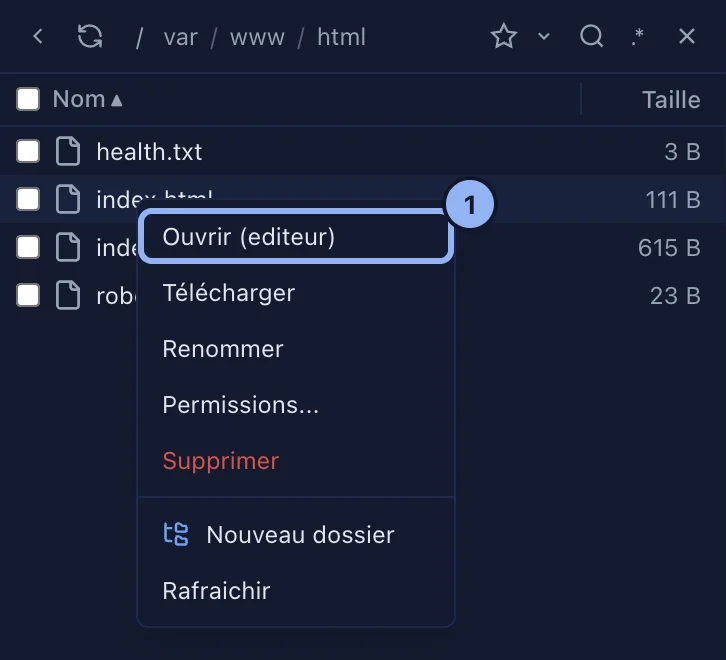
Right-click: Open (editor), Download, Rename, in place, Return to confirm, Permissions, Delete, with confirmation, New folder and Refresh. A double-click on a text file under 5 MB opens it in the editor; on any other file, it downloads it.
Permissions
Permissions: the Read, Write and Execute boxes for Owner, Group and Other, or the Octal value, 755 or 644. Then Apply.
Searching
The magnifier, ⌘⇧F, looks for a filename in the current folder and its subfolders, 5 levels down, up to 200 results. The * and ? wildcards work and case is ignored: *.log, nginx*.conf. A click on a result opens its folder.
Several files at once
Tick the rows, or the header box for all of them: Download, Delete, cancel.
Applies to SSHive 2.0.6 on Mac